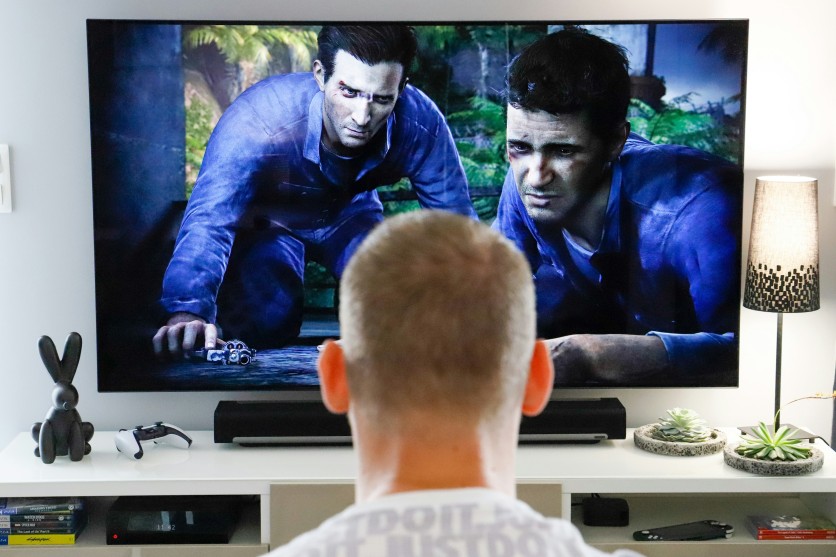
The PS5 offers one of the most seamless and powerful built-in capture systems ever released on a console, giving players instant access to PS5 screen recording in sharp 4K resolution. Whether you want to save a clutch moment, create highlight reels, or produce full-length content, the PlayStation gameplay capture tools make it easy for anyone to start recording like a creator. With customizable settings and intuitive shortcuts, the PS5 transforms simple gameplay into share-ready footage in seconds.
This guide teaches you everything you need to know—from quick captures to complete video edits using the Share Factory PS5 guide. By combining smart recording techniques with simple editing tools, you can elevate your clips to professional quality without additional software or expensive equipment. Get ready to level up your content creation workflow directly from your console.
Basic PS5 Screen Recording and PlayStation Gameplay Capture
PS5 screen recording starts with the DualSense controller's Create (Share) button, giving you quick access to various capture methods. Double-pressing the button instantly saves a short clip, while holding it opens the full capture menu where you can choose custom recording lengths for up to 60 seconds retroactively. This makes it easy to save unexpected highlights without needing to record entire sessions. You can also start manual recording at any time to capture extended gameplay sequences for walkthroughs, reviews, or livestream support footage.
Inside Settings > Captures and Broadcasts, the PS5 lets you fine-tune your recording preferences. Under Auto-Captures, you can enable or disable features like recent play saves, automatic trophy highlights, and clip length presets. Under Video Clips, you can adjust resolution and frame rate based on your needs—up to 4K at 60fps for players using the PS5's performance mode. These settings ensure your PlayStation gameplay capture always matches the quality level required for your final content.
Storage management is equally important. The PS5's internal SSD can hold roughly an hour of 4K footage, but serious creators may prefer using an external USB drive. Formatting a drive for PS5 capture expands your space and allows quick transfers to PC for additional editing. With the right combination of shortcuts, settings, and storage, basic PS5 screen recording becomes smooth, efficient, and ready for any type of content creation.
Advanced Editing with Share Factory PS5 Guide
The Share Factory PS5 guide gives players the tools they need to transform simple clips into polished, professional-looking videos. Once your recordings are saved, the editing suite becomes your all-in-one studio directly on the console. It allows beginners and experienced creators to edit, enhance, and export content with ease.
- Launch Share Factory through the Media Gallery to access the full built-in editing suite.
- Trim clips, cut scenes precisely, add transitions, overlay text, and use licensed music tracks.
- Build complete highlight reels using multi-clip timelines for smooth, cohesive videos.
- Access advanced tools such as speed adjustments, picture-in-picture webcam layers, voiceovers, filters, and color correction.
- Match the style of top gaming channels without needing a PC or external editing software.
- Export videos with platform-optimized settings for YouTube, Instagram Reels, and TikTok.
- Automatically adjust aspect ratios so gameplay fits perfectly on each platform.
- Use beginner-friendly templates with animated intros, lower-thirds, sound effects, and pre-made transitions.
- Combine multiple clips, music cues, and overlays to create high-quality social media videos.
Recording Tips to Level Up Your PS5 Gameplay Clips
Improving your PS5 gameplay capture comes down to using smart recording techniques that enhance both visuals and audio. Small adjustments to settings can dramatically boost the quality of your clips. With the right setup, your gameplay footage can look far more polished and professional.
- Adjust in-game HUD settings based on whether you want a cinematic or competitive-style clip.
- Tweak brightness, graphics mode, and audio balance to produce cleaner, clearer recordings.
- Set microphone and party audio preferences in Settings > Sound for balanced commentary.
- Stay mindful of lighting and screen contrast to avoid dark or washed-out footage.
- Enable Performance Mode for smoother frame rates during fast-paced gameplay.
- Use stable camera angles and steady character movement to avoid jittery-looking clips.
- Clean your display and check cable connections to maintain crisp visual quality.
- Record short test clips before major sessions to ensure settings look and sound right.
- Keep your storage organized to prevent interruptions during long gameplay captures.
Conclusion
Mastering PS5 screen recording tools, perfecting your PlayStation gameplay capture, and utilizing techniques from the Share Factory PS5 guide can turn any player into a polished creator. With intuitive controls and built-in 4K capabilities, the PS5 makes capturing high-quality footage easy for beginners, competitive players, and aspiring influencers alike. Your best gaming moments can be saved, shared, and edited effortlessly using the console's built-in features.
As you continue practicing and experimenting with settings, editing tools, and creative styles, your clips will naturally start looking more professional. Whether you're posting on YouTube, TikTok, or Instagram, the PS5 gives you everything you need to produce viral-worthy content without extra hardware. With the right workflow, your console becomes a complete production studio ready for any gaming highlight.
Frequently Asked Questions
1. How much PS5 screen recording storage do I need for 4K clips?
Approximately one hour of 4K footage fits on the internal SSD, but using a USB drive is ideal for longer content.
2. Can I record PlayStation gameplay capture while streaming?
Yes, the PS5 records gameplay during livestreams, though some overlays or copyrighted music may affect the final clip.
3. What are the best Share Factory PS5 guide templates for beginners?
Intro-focused templates with preset transitions and music tracks are the easiest starting point for new creators.
4. How do I transfer PS5 clips to a PC for advanced editing?
Use a formatted USB drive, then plug it into your computer to import clips into software like Premiere Pro or DaVinci Resolve.
ⓒ 2026 TECHTIMES.com All rights reserved. Do not reproduce without permission.


