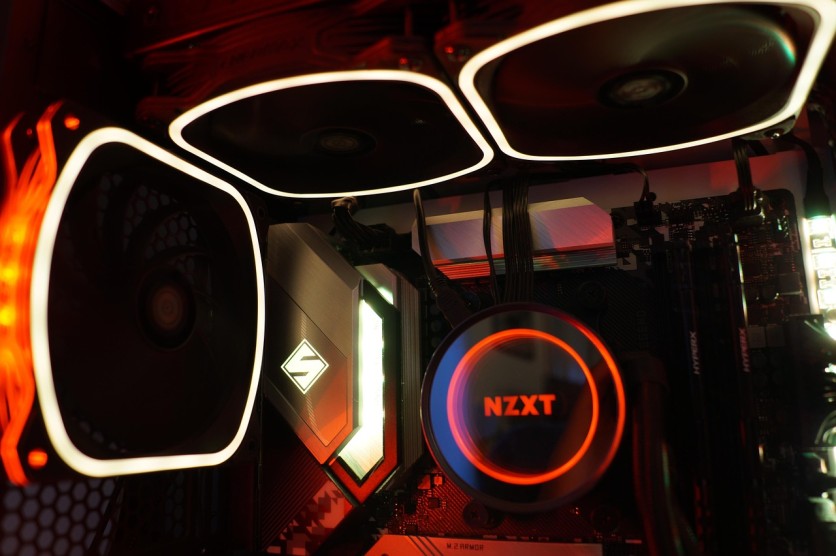
Modern gaming PCs are built for performance, but power comes with heat. Managing or reducing temps effectively isn't just about protecting hardware, it's also about maintaining top-tier gaming performance.
When internal components overheat, performance can drop due to thermal throttling, causing frame rate dips or system instability. For those aiming to play at high resolutions or stream without stutter, adopting smart PC cooling tips can significantly reduce temps and boost FPS in demanding games.
Why Does PC Cooling Affect FPS?
Temperature management directly impacts how efficiently a PC performs. Central processing units (CPUs) and graphics processing units (GPUs) are designed to operate within specific temperature thresholds. When they exceed that limit, the system automatically slows down to prevent damage, a process known as thermal throttling.
Thermal throttling reduces the clock speeds of your CPU and GPU, meaning fewer calculations per second and lower frame rates in games. Conversely, if a PC can maintain cooler temperatures, components can sustain their peak frequencies for longer periods. In competitive gaming, even slight improvements in clock stability can make a noticeable difference, giving players smoother visuals and better responsiveness.
How to Improve Airflow in Your Case
Good airflow forms the foundation of any effective PC cooling system. It ensures that cool air continuously enters the case while hot air exits quickly.
A well-ventilated setup should follow a front-to-back or bottom-to-top airflow direction. Front and bottom fans generally serve as intakes, drawing in cooler air, while top and rear fans act as exhausts to push out hot air. Balancing these two types helps maintain consistent circulation throughout the chassis.
Key airflow optimization tips:
- Remove obstructions such as cables or unused drive cages that block air paths.
- Choose cases with mesh fronts or open ventilation designs for better intake.
- Maintain a slightly positive air pressure (more intake than exhaust) to reduce dust buildup.
- Regularly clean case filters and vents to prevent clogs that restrict airflow.
Optimizing airflow alone can often reduce temps by 5–10°C, helping hardware run smoother and more efficiently.
Choosing Between Air and Liquid Cooling
When fine-tuning a gaming rig, many enthusiasts debate between air and liquid cooling. Both have advantages depending on a user's budget, case size, and performance expectations.
Air cooling relies on metal heatsinks and fans to dissipate heat. It's more affordable, easier to maintain, and generally quieter when configured properly. High-end air coolers can handle most gaming CPUs efficiently, provided that case airflow is adequate.
Liquid cooling, on the other hand, uses a loop of coolant to transfer heat away from components. All-in-one (AIO) liquid coolers are popular due to their sleek design and superior cooling capacity. They typically reduce temps by several degrees compared to air cooling, especially under sustained loads. However, they may require more maintenance and carry a higher upfront cost.
For extreme overclocking or enthusiast builds, custom liquid-cooling loops offer unmatched performance and aesthetics. For most users, though, a high-quality CPU air cooler paired with a GPU featuring an efficient fan design is more than sufficient to boost FPS gaming results.
How Often Should You Clean Your PC?
Dust is one of the biggest enemies of PC cooling. Over time, dust collects inside cases, coating fans, heatsinks, and filters, restricting airflow and causing heat to build up faster. Regular cleaning ensures consistent airflow and long-term component health.
Experts typically recommend cleaning a gaming PC every three to six months, depending on environmental factors. Homes with pets or high humidity may require more frequent maintenance.
Safe cleaning methods include:
- Using compressed air to gently remove dust from fan blades and vents.
- Employing anti-static brushes to clean tight or sensitive areas.
- Wiping exterior panels with microfiber cloths to remove debris without scratching.
A clean PC not only runs cooler but also prolongs the lifespan of components while maintaining quieter operation.
The Role of Thermal Paste in Cooling
Thermal paste plays a critical role in heat transfer between the processor and its cooling component. It fills microscopic gaps on the metal surfaces, maximizing contact and improving conductivity.
Over time, thermal paste can dry out or degrade, reducing its effectiveness. Replacing the paste every two to three years helps reduce temps significantly, especially on older systems.
When applying new paste, a small pea-sized amount in the center of the CPU is sufficient. The heatsink will spread it evenly when mounted. Avoid using too much paste, as it can trap heat rather than dissipate it effectively.
Enthusiasts looking to push hardware limits often use premium thermal compounds or even liquid metal, which provides superior conductivity but requires careful handling.
Read more: Ultimate PS5 Cleaning Guide: Essential PlayStation Maintenance Tips to Prevent PS5 Overheating
How to Monitor PC Temperatures
Monitoring system temperatures is a vital step in maintaining performance. Modern hardware sensors make it easy to track heat levels and fan speeds in real-time.
Recommended software tools:
- MSI Afterburner: Monitors GPU and CPU temps and lets users adjust fan curves.
- HWMonitor: Provides comprehensive temperature, voltage, and load statistics.
- NZXT CAM: Displays system status with user-friendly visuals.
Ideal operating ranges typically fall between 35–75°C for CPUs and 60–85°C for GPUs under load. If these temperatures rise frequently higher, one of the previously mentioned PC cooling tipsmay help stabilize performance.
When temperatures spike beyond safe limits, users should check for dust buildup, inadequate thermal paste, or improper fan configurations.
Advanced Cooling Options for Enthusiasts
Hardcore gamers and PC builders often take cooling a step further with advanced techniques that deliver fine-tuned control and performance gains.
Some choose custom water-cooling loops, combining CPU and GPU water blocks with radiators for optimal heat dissipation. These systems can reduce temps considerably and are common in high-end overclocked rigs.
Others fine-tune fan curves using BIOS settings or control software. Adjusting fan speed based on temperature thresholds ensures cooling efficiency without excessive noise.
Undervolting is another advanced method, reducing voltage to the CPU or GPU can decrease power consumption and heat output without impacting performance, especially when gaming at stable clock speeds.
Cable Management and Its Impact on Cooling
While often overlooked, proper cable management plays a functional role in maintaining effective airflow. Poorly arranged cables obstruct air movement, create heat pockets, and force fans to work harder.
Keeping the interior organized promotes smoother airflow paths from intake to exhaust fans. Using cable ties, Velcro straps, or routing channels behind the motherboard tray can make a noticeable difference. Additionally, many modern cases include built-in management systems to simplify this process.
An organized build doesn't just look professional, it also helps reduce temps and can extend the lifespan of fans and other components by minimizing dust accumulation.
Small Changes, Big Difference
Building and maintaining an efficient cooling system is one of the best long-term strategies for gamers seeking both stability and speed. Through proper airflow design, timely cleaning, quality coolers, and precise monitoring, any PC can maintain lower operating temperatures that directly enhance performance.
By incorporating these proven PC cooling tips, gamers can reduce temps, prolong component lifespan, and significantly boost FPS during intense sessions. Whether relying on air cooling or experimenting with advanced liquid systems, the key lies in balance, optimizing airflow, cleanliness, and configuration for peak results.
A cooler PC isn't just a quieter or more durable one, it's also a faster, smoother, and more reliable gaming machine capable of delivering the performance modern titles demand.
Frequently Asked Questions
1. Can adding more case fans improve gaming performance?
Adding more case fans doesn't directly increase FPS, but it enhances airflow and reduces overall system temperature. Lower temps help prevent CPU and GPU throttling, allowing hardware to maintain higher performance levels consistently. This indirect benefit can result in smoother gameplay and more stable frame rates during long gaming sessions.
2. What room temperature is best for keeping a gaming PC cool?
Room temperature plays a major role in cooling efficiency. Ideally, the ambient temperature should stay between 18°C–24°C (65°F–75°F). Higher ambient heat limits how effectively case fans and coolers can draw in cool air. Gaming in a well-ventilated or air-conditioned environment maximizes cooling system performance and longevity.
3. Does overclocking make it harder to keep temps low?
Yes. Overclocking increases voltage and clock speeds, which raises heat output substantially. While it can yield higher FPS, managing these increased thermals requires improved cooling systems, such as high-end air coolers, AIO liquid cooling, or custom loops. Monitoring and fine-tuning voltage levels can help balance performance gains with safe temperatures.
4. Are RGB fans just for aesthetics, or do they help with cooling too?
RGB fans perform the same cooling function as non-RGB fans, the lighting doesn't affect airflow. However, many RGB models are premium products that feature high static pressure, durable bearings, and advanced PWM control. This means they can offer effective airflow alongside customizable lighting for users who want both function and style in their builds.
ⓒ 2026 TECHTIMES.com All rights reserved. Do not reproduce without permission.


