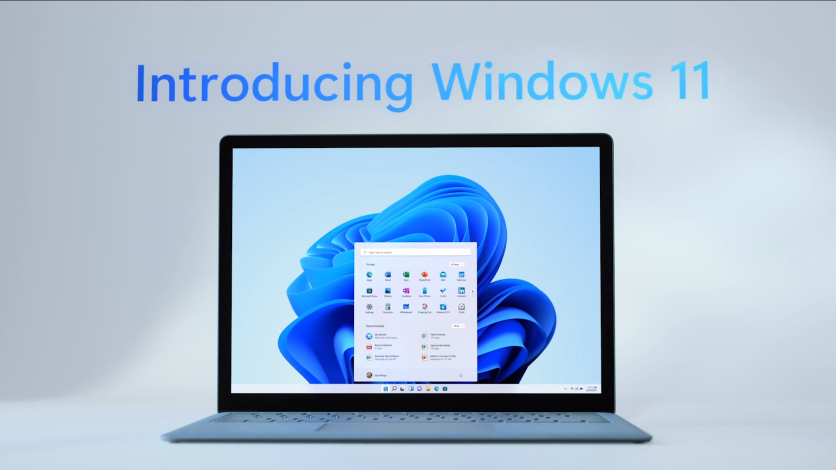
Microsoft shipped its largest-ever security update on June 9, 2026, and the 2011 Secure Boot certificates inside Windows begin expiring in late June, which makes this the right month to stop ignoring the Windows 11 Settings app. The nine changes below take about 20 minutes, cost nothing, and meaningfully improve how fast your PC feels, how much it shares about you, and how hard it is to attack. None of them touch the command line, and you can do them in any order.
Why review your Windows 11 settings in June 2026?
Two unrelated events collided this month. The June 9 Patch Tuesday was the biggest in the program's history, fixing roughly 200 flaws and three publicly disclosed zero-days, so installing it is no longer optional. Separately, the Secure Boot certificates that have signed Windows since 2011 start expiring in late June, with one Microsoft certificate authority lapsing June 24 and another on June 27. There is no scheduled patch between June 9 and those dates, so the settings you confirm now are the ones protecting you through the gap. A quick audit also catches the privacy and performance defaults that Windows quietly leaves switched the wrong way.
Install the June update and turn on faster delivery
Open the Settings app, choose Windows Update, and click Check for updates so the June 9 cumulative patch installs if it has not already. While you are on that page, turn on the toggle labeled "Get the latest updates as soon as they're available," which pushes non-security fixes to your device sooner. You still receive regular security updates whether that toggle is on or off, so there is no security downside to leaving it off if you prefer fewer mid-cycle changes. This month's update carries extra weight because it is the last Patch Tuesday before the Secure Boot certificate expirations.
Turn on Core Isolation memory integrity
Open Windows Security from the Start menu, choose Device security, click the "Core isolation details" link, and switch Memory integrity to On. Memory integrity, which Microsoft also calls Hypervisor-protected Code Integrity, uses your PC's virtualization hardware to wall off high-security Windows processes so malware cannot inject malicious code into them through a vulnerable low-level driver. The feature is off by default on many machines, including some clean installs. If the toggle refuses to enable, Windows usually names an incompatible driver, and updating or removing that driver from the manufacturer's site normally clears the block.
Switch on Controlled folder access against ransomware
Still inside Windows Security, open "Virus & threat protection," scroll down to "Ransomware protection," click "Manage ransomware protection," and turn Controlled folder access On. The feature watches your protected folders, such as Documents, Pictures, and Desktop, and blocks any app it does not recognize from writing to them, which is precisely the behavior ransomware relies on. Windows system folders are protected automatically and cannot be removed from the list. If a legitimate program you trust gets blocked, use the "Allow an app through Controlled folder access" option to add it to the safe list.
Confirm your drive is actually encrypted
Go to Settings, choose Privacy & security, and open Device encryption. On Windows 11 version 24H2, a clean install that meets the hardware requirements and is signed in with a Microsoft account turns encryption on by itself, but a PC that upgraded in place from an older build may still be unencrypted. If the toggle is Off and your hardware supports it, switch it on, then make sure your recovery key is backed up to your Microsoft account or somewhere safe. Encryption is the single thing that keeps a lost or stolen laptop's files unreadable to whoever finds it.
Disable the advertising ID and tailored experiences
Go to Settings, choose Privacy & security, and open General. Turn off "Let apps show me personalized ads by using my advertising ID," then switch off "Let websites show me locally relevant content" and "Tailored experiences." Disabling the advertising ID does not reduce how many ads you see, but it stops apps from stitching your activity into a single profile used to target them. On newer builds Microsoft has begun moving the advertising ID control to Privacy & security, then Recommendations & offers, so check there if you cannot find it under General.
Cut diagnostic data to the minimum
In Settings, choose Privacy & security, then open "Diagnostics & feedback." Switch "Send optional diagnostic data" to Off, and while you are there turn off "Improve inking and typing" and any "Tailored experiences" toggle that appears. Windows always transmits a required baseline of diagnostic data it needs to deliver updates and keep itself secure, so you cannot reach zero telemetry without third-party tools. Turning off the optional stream is the meaningful win, because that is the data covering your browsing patterns, app usage, and samples of how you type.
Audit your camera, microphone, and location permissions
Open Settings, choose Privacy & security, and visit Camera, Microphone, and Location one at a time. Each page lists every app that can use that sensor with an individual on or off switch, a master "Let apps access" toggle at the top, and a "Recent activity" section showing which apps tapped the sensor in the past seven days. Revoke access for anything that has no reason to watch or listen, such as a game requesting your microphone. The recent-activity view is the fastest way to catch an app behaving in a way you did not expect.
Which Windows 11 settings improve performance?
Three changes do most of the work. First, open Settings, choose Apps, then Startup, and switch off anything you do not need the instant you log in. Each entry carries a High, Medium, or Low impact rating, and trimming this list is the most effective way to shorten boot times and free up memory. Leave your antivirus and your audio or display drivers enabled. Second, go to Settings, choose System, then Storage, and turn on Storage Sense so Windows clears temporary files and empties the Recycle Bin on its own. Third, on a desktop or a plugged-in laptop, go to Settings, choose System, then "Power & battery," and set Power mode to Best performance. Keep it on Balanced when running on battery to protect runtime.
Tune visual effects for a snappier feel
For older or lower-spec hardware, search the Start menu for "Adjust the appearance and performance of Windows," then choose "Adjust for best performance" to switch off animations and transparency in one move. That trades the polished look for responsiveness, which is usually worth it on a struggling PC. If you want a middle ground, leave "Adjust for best performance" unselected and manually re-check the one or two effects you care about, such as smooth-scrolling lists, while leaving the rest off.
Frequently Asked Questions
Does changing Windows 11 settings actually speed up my PC?
Some changes do, and some only change how fast it feels. Disabling startup apps and turning on Storage Sense free real resources, which can shorten boot times and reduce background load. Power mode and visual-effects tweaks mostly affect perceived responsiveness rather than raw benchmark speed, but on older hardware that perception matters a lot.
Is it safe to turn off Windows 11 telemetry?
Yes. You can safely switch off optional diagnostic data, the advertising ID, and tailored experiences without breaking anything. Windows keeps sending a small required baseline it needs to deliver security updates, and you cannot remove that baseline through Settings, so your PC stays patched and protected.
Will disabling the advertising ID stop ads?
No. You will still see the same number of ads in Windows and in apps. What changes is that the ads become less targeted, because apps can no longer use a shared identifier to build a cross-app profile of your activity.
Which settings matter most for security?
Installing the latest Windows Update is first, followed by Core Isolation memory integrity, Controlled folder access, and confirming device encryption is on with the recovery key backed up. Those four cover patching, driver-level attacks, ransomware, and physical theft.
ⓒ 2026 TECHTIMES.com All rights reserved. Do not reproduce without permission.


