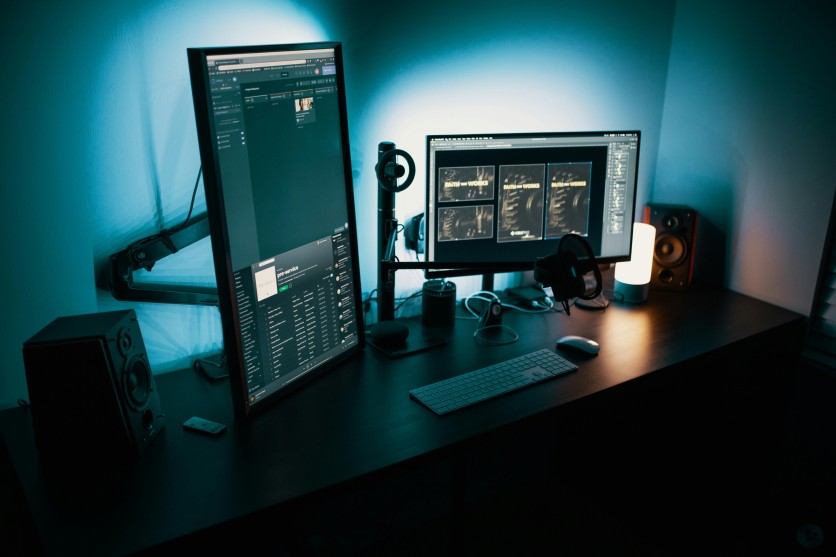
Budget gaming stream setup transforms ordinary PCs into polished streaming rigs without spending thousands. Streaming on a budget prioritizes smart gear choices like dynamic USB mics, ring lights, and capture cards delivering crisp 1080p60 streams. Beginner streaming gear focuses on audio clarity, webcam quality, and OBS setup guide optimization, letting casual streamers hit professional-looking results for under $300.
Modern streaming demands balancing gameplay performance with broadcast quality. Budget gaming stream setup leverages GPU hardware encoding for dual-core tasks, while avoiding expensive webcams and mixers. Streaming on a budget ensures visuals, sound, and overlays stay sharp, with beginner streaming gear emphasizing value, reliability, and ease of use for newcomers.
Budget Gaming Stream Setup Hardware Essentials
Building a strong foundation for streaming starts with choosing the right budget-friendly gear. Essential hardware covers audio, video, and capture, ensuring streams look professional without overspending. Budget gaming stream setup balances performance and quality so your PC can handle 1080p60 streams without compromising gameplay.
- Dynamic USB mic: $40 Fifine K669B rejects keyboard noise, eliminates the need for $150 audio interfaces, and plugs in instantly.
- Ring light: $30 Neewer kit softens shadows and delivers even 3200K illumination, mounted above monitors for natural skin tones.
- Webcam: $60 Logitech C920 records 1080p30 with autofocus, following face pans smoothly during fast gameplay.
- Capture card: $20 Elgato HD60 S+ allows console streaming at 1080p60 with zero-lag HDMI passthrough.
- Boom arm & mounts: $15 arms position mics optimally 6 inches from the lips, reducing breath pops and desk clutter.
- Ethernet adapters: $10 adapters stabilize uploads to 6Mbps or higher, avoiding Wi-Fi jitter.
Beginner streaming gear balances price with quality, allowing smooth, professional-looking broadcasts for under $150 in essential hardware. Streaming on a budget ensures that key areas—audio clarity, lighting, and webcam quality—receive priority. Budget gaming stream setup hardware keeps CPU and GPU headroom for gameplay while maintaining 1080p60 stream quality.
OBS Setup Guide for Beginner Streaming Gear
OBS setup guide helps new streamers configure bitrate, resolution, and audio with minimal stress. Proper setup ensures CPU and GPU resources focus on gameplay while maintaining smooth 1080p60 streams. Streaming on a budget becomes simple with auto-configuration, scene management, and efficient encoding presets.
- Auto-configuration wizard: Tests upload speeds and sets bitrates between 4500–6000kbps for 1080p60 smoothness.
- Game capture layering: Combines specific window capture with display capture to reduce overhead by 5%.
- Audio routing: Separate tracks for mic, game, and Discord enable noise gates and volume balancing.
- Scene management: Switching between loading screens, face cams, and BRB scenes happens seamlessly.
- NVENC x264 preset "quality": Encodes streams using 8% GPU, leaving RTX 3060 or similar cards free for high-FPS gameplay.
- Filters & color correction: Webcam feeds sharpened with Lanczos scaling and natural skin tone adjustments without green cast.
Streaming on a budget requires efficient encoding. Beginner streaming gear, combined with OBS setup guide presets, ensures CPU resources focus on gameplay while delivering crisp streams. Budget gaming stream setup in OBS provides customizable scenes, audio control, and encoding efficiency for smooth broadcasts.
Read more: Cloud Gaming Low-End PC Guide: How to Play Games Without a GPU Using Top Cloud Gaming Services
Streaming on a Budget — Audio and Lighting Mastery
Audio and lighting are critical for keeping viewers engaged on a tight budget. Even affordable mics and lights can create crisp sound and flattering visuals when positioned correctly. Budget gaming stream setup ensures audio clarity, professional lighting angles, and webcam framing combine for polished, beginner-friendly broadcasts.
- Dynamic mics: $40 Fifine bundles reject ambient noise better than condensers, minimizing keyboard and fan sounds.
- Audio mixing: Voicemeeter balances game, mic, and music levels; noise suppression filters reduce hum and plosives.
- Lighting angles: $30 Neewer panels positioned at 45° create flattering shadows and Rembrandt triangles.
- Webcam framing: Right-click "advanced properties" unlocks 78° FOV for ideal torso framing.
- Chroma key: $15 green screen or fabric backdrop integrates with OBS to overlay avatars and gameplay cleanly.
- Ring light dimming: Adjustable to 50% to match ambient lighting, avoiding blown-out highlights.
Beginner streaming gear emphasizes audio first, since poor sound quality drives viewers away faster than video issues. Streaming on a budget ensures faces are well-lit, audio is crisp, and OBS integrates all sources efficiently. Budget gaming stream setup makes even $40–60 components look and sound professional with proper positioning and settings.
Network and Software Tweaks for Stable Budget Streams
Proper network setup and smart software tweaks keep budget streams smooth and professional. Even low-cost gear can deliver crisp audio and visuals with the right adjustments.
- Ethernet over Wi-Fi: $10 adapters provide 99.9% packet delivery, reducing frame drops and stuttering.
- QoS router settings: Prioritize OBS traffic and deprioritize downloads during live streams.
- Upload testing: Use Speedtest.net to confirm at least 8Mbps headroom for 1080p60 streaming.
- Dual monitors: Keep OBS previews separate from gameplay to avoid Alt-Tab interruptions.
- VPN caution: Avoid VPNs during streams to prevent 20–50ms latency spikes.
- NVIDIA Broadcast AI noise removal: Clean mic signals without expensive mixers.
- Windows Game Mode: Reserve CPU resources for gameplay to minimize lag during encoding.
- OBS profiles & hotkeys: Switch scenes, mute mic, or start/stop recording instantly mid-game.
- Voicemeeter sidechaining: Automatically lower music volume under mic audio for clean mixes.
- Lighting & LUT filters: Adjust webcam color temperatures to prevent unnatural skin tones.
Master Your Budget Stream Setup Like a Pro
A budget gaming stream setup doesn't need premium gear to succeed. Smart hardware choices, OBS optimization, and audio/lighting mastery create engaging broadcasts. Streaming on a budget allows beginners to focus on content, performance, and community growth. Beginner streaming gear combined with network, software, and setup strategies maximizes quality for minimal expense. Following these steps, even casual streamers can deliver 1080p60 streams that look and sound professional without overspending.
Frequently Asked Questions
1. How much does beginner streaming gear cost in total?
Beginner streaming gear can cost as little as $150 when focusing on value essentials. A dynamic USB mic, budget webcam, and simple ring light cover audio and video quality without overspending. Adding a capture card for console streaming raises the total to around $300, still well below professional setups. Careful selection of affordable gear ensures smooth 1080p60 streaming without compromising the viewer experience.
2. What's the best OBS setup guide bitrate for budget streams?
For 1080p60 streaming, a bitrate between 5,000–6,000 kbps is ideal on a 10 Mbps upload connection. Lower bitrates like 4,500 kbps can still work for smoother playback at 720p60. OBS's auto-configuration wizard helps set this automatically, matching upload speeds to minimize dropped frames. Choosing the right bitrate ensures crisp visuals without overloading your PC or internet.
3. Do budget gaming stream setups need capture cards?
Capture cards are only necessary if you plan to stream consoles like PS5 or Switch. PC streamers can capture gameplay directly via OBS without extra hardware. Budget-friendly options like $60 HDMI passthrough cards allow zero-lag console streaming in 1080p60. Investing in one ensures versatile streaming while keeping costs low compared to high-end setups.
4. How does the OBS setup guide optimize encoding for beginners?
OBS uses presets like NVENC or x264 to balance quality and performance automatically. The setup wizard tests your hardware and recommends the ideal bitrate for smooth 1080p60 streams. Audio and video tracks are separated to prevent game sounds from overpowering your microphone. With these settings, beginners can focus on gameplay while OBS handles encoding efficiently.
ⓒ 2026 TECHTIMES.com All rights reserved. Do not reproduce without permission.


