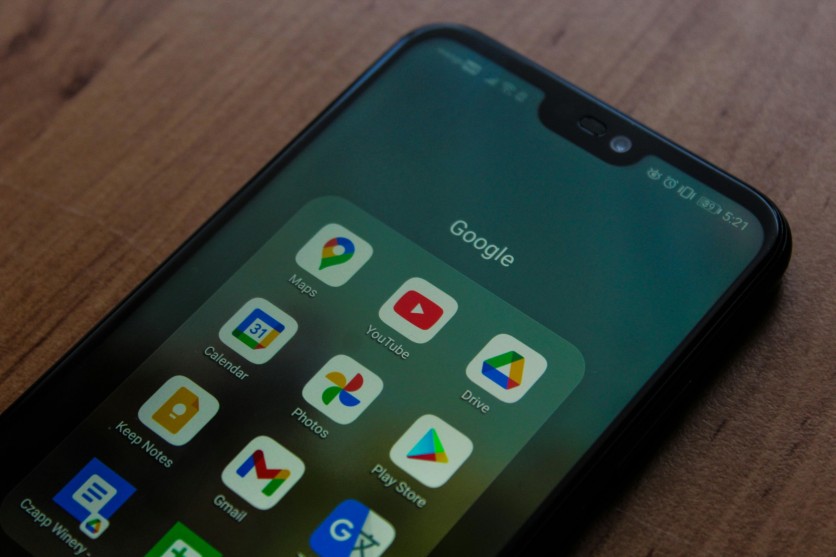
Android phones can slow down over time as storage fills with photos, videos, cached files, downloads, and unused apps. Many users install third-party cleaner apps, but most Android devices already include built-in Android storage tools that can safely manage space without additional software.
Why Storage Space Affects Android Performance
When internal storage becomes nearly full, Android devices may experience:
- Slower app launches
- Lag during multitasking
- Delayed software updates
- Camera saving issues
- Reduced gaming performance
Android systems need free space for temporary files, app updates, and background processes. Regular storage management helps devices run more smoothly over time.
What Are Android Storage Tools?
Android storage tools are built-in cleanup tools that help users organize files, remove unnecessary data, and free up storage safely.
Some common Android storage tools include:
- Google Files app
- Google Photos "Free Up Space"
- Smart Storage
- Cache management settings
- App archiving features
These built-in tools are generally safer than many third-party cleaning apps because they are developed directly by Google or phone manufacturers.
How the Google Files App Helps Free Up Storage
The Google Files app is one of the most useful cleanup tools available on Android. It scans the device and suggests files that can be removed safely.
What Google Files Can Detect
The app identifies:
- Duplicate files
- Large videos
- Old screenshots
- Temporary files
- Unused downloads
- Blurry images
This makes storage management faster without manually searching through folders.
How to Use the Google Files App
- Open the Google Files app
- Tap the "Clean" tab
- Review cleanup suggestions
- Select unwanted files
- Confirm deletion
The app also includes a Trash feature that temporarily stores deleted files before permanent removal.
TechRadar highlighted the Google Files app as one of Android's most overlooked built-in cleanup tools because it allows users to preview files before deletion.
Using Google Photos to Free Up Space
Photos and videos often consume the most storage on Android devices. Google Photos includes a feature that removes local copies of files already backed up to the cloud.
Steps to Use Google Photos Cleanup
- Open Google Photos
- Tap the profile icon
- Select "Free up space"
- Review backed-up files
- Confirm deletion of local copies
After removal, backed-up photos and videos remain accessible online.
Google's Android support documentation also recommends enabling backup before deleting files to avoid accidental data loss.
Storage Saver vs Original Quality
Google Photos offers two backup settings:
- Storage Saver compresses files slightly to save cloud space
- Original Quality preserves full resolution but uses more storage
Users who record lots of video may benefit more from Storage Saver.
Smart Storage Automatically Removes Clutter
Many Android devices include Smart Storage, a feature that automatically removes backed-up photos and videos when storage becomes low.
How to Enable Smart Storage
- Open Settings
- Tap Storage
- Select Smart Storage
- Turn the feature on
This feature helps reduce manual cleanup tasks while maintaining access to files in cloud backup.
Clearing Cache Can Improve Android Performance
Apps create temporary cache files that can build up over time and consume large amounts of storage.
How to Clear Cache
- Open Settings
- Tap Apps
- Choose an app
- Select Storage
- Tap "Clear Cache"
Clearing cache usually does not remove personal information or account settings.
Apps like TikTok, Instagram, YouTube, and streaming services often generate large cache files. Tom's Guide has also reported that excessive cached data can contribute to Android slowdowns.
Removing Unused Apps Helps Free Space
Unused apps continue occupying storage even when rarely opened. Removing or archiving apps can free significant space.
Benefits include:
- More free storage
- Reduced background activity
- Better storage management
- Improved system organization
Some Android devices also support app archiving, which removes most app files while keeping user data available for future restoration.
Common Storage Cleanup Mistakes
Users should avoid:
- Installing risky third-party cleaner apps
- Deleting files before confirming backup
- Clearing app data instead of cache
- Ignoring large downloads and duplicate files
Built-in Android storage tools are usually enough for regular maintenance.
Simple Habits for Better Storage Management
Helpful habits include:
- Deleting old screenshots
- Clearing downloads regularly
- Backing up photos often
- Monitoring storage monthly
- Limiting offline video downloads
These small habits can help improve Android performance consistently.
Built-In Cleanup Tools Can Keep Android Phones Running Smoothly
Modern Android devices already include effective Android storage tools that can handle most cleanup tasks safely. The Google Files app, Google Photos, Smart Storage, and cache management settings provide reliable ways to free up space without relying on unnecessary third-party apps.
Using these cleanup tools regularly can improve Android performance, reduce lag, and make long-term storage management much easier.
Frequently Asked Questions
1. Is the Google Files app safe to use?
Yes. The Google Files app is developed by Google and allows users to preview files before deletion.
2. Does freeing up storage improve Android performance?
Yes. More available storage can help apps load faster and improve overall responsiveness.
3. What takes up the most storage on Android phones?
Photos, videos, app cache, downloads, and offline streaming content are usually the largest storage consumers.
4. How often should Android storage be cleaned?
Checking storage once a month is usually enough for most users, although heavy media users may need more frequent cleanup.
ⓒ 2026 TECHTIMES.com All rights reserved. Do not reproduce without permission.


