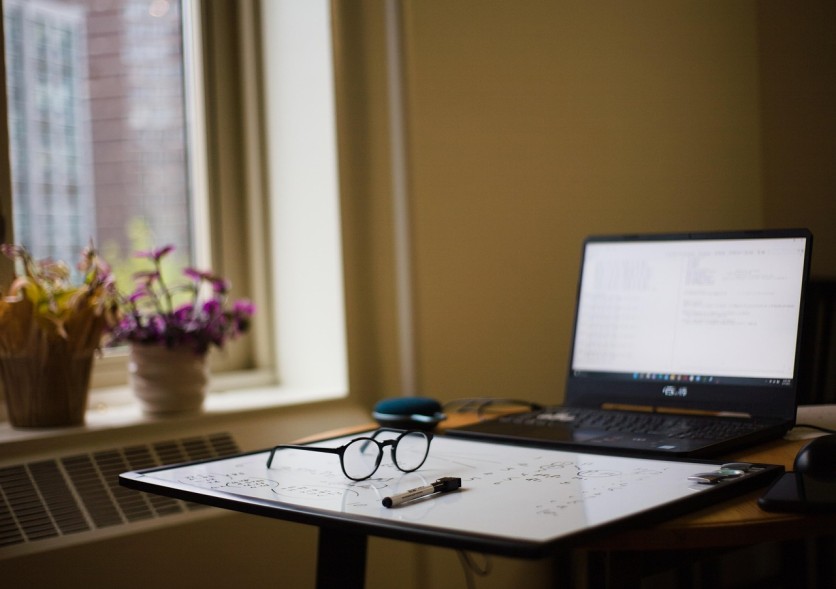
Reusing outdated electronics can extend their value and reduce e-waste, and one of the most practical ways to repurpose old tech is through an old laptop reuse project. Turning an unused device into a home media server setup allows users to organize and stream movies, music, and photos across multiple devices in the household.
With free or affordable software, anyone can transform aging hardware into a reliable entertainment hub without investing in new hardware.
What Do You Need to Set Up a Home Media Server?
A successful home media server setup doesn't require top-tier components—just the right combination of hardware, software, and connectivity. Most laptops manufactured within the past decade are capable of running lightweight server applications. Essential requirements include:
- A functional old laptop with at least 4GB of RAM and sufficient storage
- Reliable Wi-Fi or a wired Ethernet connection
- External storage drives (optional) for additional space
- Access to either Windows, Linux, or macOS operating systems
Choosing media server software is the next step. Popular options include Plex, Jellyfin, Kodi, and Emby. Each provides tools to organize digital collections and stream across devices within the same network.
Can You Turn an Old Laptop Into a Server?
Many assume a dedicated server requires advanced hardware, but an old laptop reuse project proves otherwise. Older devices often have enough processing power to handle low-bandwidth tasks such as streaming standard-definition or HD content.
To optimize system performance, users can:
- Replace old hard drives with solid-state drives (SSDs) for faster access speeds.
- Increase available RAM if the device allows it.
- Disable unnecessary startup programs to reduce resource usage.
- Keep the device connected to power to prevent overheating or battery degradation.
These adjustments ensure the laptop remains stable while running server software continuously.
How to Install Media Server Software on a Laptop
Setting up a home media server involves preparing the system and installing suitable software. The general process includes:
- Wipe and refresh the laptop: Save any important files, then perform a clean operating system installation—Windows 10, Ubuntu, or Linux Mint are common choices for their wide compatibility and stability.
- Update the OS: Apply necessary updates and drivers to avoid security and network issues.
- Install server software:
- Plex is ideal for an intuitive interface and smart recommendations.
- Jellyfin provides a fully open-source solution with no subscription fees.
- Kodi works well as both a media player and server.
- Emby offers strong library customization with optional premium plans.
- Configure network settings: Ensure the device has a static IP address or enable local network discovery so it can be found consistently by other devices.
- Add media files: Organize and tag files for smooth streaming and easier navigation.
Within minutes, an outdated machine can become a central hub for digital entertainment.
How Can You Access the Media Server From Other Devices?
Once the home media server setup is complete, it can stream content to televisions, smartphones, tablets, and computers connected to the same network. Each media server software platform includes instructions on how to connect.
For instance, Plex and Emby use web interfaces and apps downloadable on smart TVs or mobile devices. Jellyfin and Kodi support DLNA (Digital Living Network Alliance), a protocol that allows compatible devices to detect and stream media automatically.
For users who want access outside the home, remote streaming can be enabled by configuring router port forwarding or using VPN services for secure connections. However, this step should be performed carefully to maintain data privacy.
What Is the Best Software for a Home Media Server Setup?
The best platform depends on the user's preference for control, performance, and features. Here's a quick comparison:
- Plex: Known for polished design, automatic metadata fetching, and cross-device streaming. Ideal for users who prefer an easy, guided setup.
- Jellyfin: 100% free and open-source, offering more privacy and customization but requiring a bit more technical setup.
- Kodi: Functions both as a server and standalone player, perfect for those who want adaptable performance in one environment.
- Emby: Combines flexibility with premium features such as cloud sync and mobile app backups.
Each system supports various formats and streaming protocols, making them flexible solutions for different old laptop reuse scenarios.
How Do You Manage and Stream Media Efficiently?
Proper organization ensures smooth and enjoyable streaming. Users can maintain efficiency with these practices:
- Organize media folders by category (Movies, Music, TV Shows, Photos).
- Use consistent naming conventions so the server software can automatically identify and group titles.
- Enable transcoding settings that adjust playback quality based on network speed and device compatibility.
- Schedule maintenance tasks such as updating metadata, rebuilding library indexes, or clearing temporary files to keep the system responsive.
When optimized, a refurbished laptop can handle multiple streams smoothly and deliver a seamless home media experience.
Troubleshooting Common Issues in Media Server Setup
Occasional hiccups can occur, especially when older hardware pushes its limits. Common problems include slow network speeds, stuttering playback, or devices not recognizing the server.
- If streaming lags, verify if the laptop is using Wi-Fi; an Ethernet connection often improves stability.
- When files fail to play, check file formats and ensure transcoding is enabled.
- If devices cannot find the server, confirm that the media software is running and the firewall allows network sharing.
- Regular software and driver updates also prevent compatibility problems and improve long-term performance.
With minor adjustments, these systems can continue running reliably for years with minimal intervention.
Is It Worth Turning an Old Laptop Into a Media Server?
Repurposing a laptop as a server delivers both environmental and financial advantages. Instead of discarding a device, old laptop reuse supports sustainability by reducing e-waste and extending hardware life. From a cost perspective, it saves money by offering media streaming capabilities without purchasing new hardware.
There are practical limits, however. High-bitrate 4K or multi-user streaming may stress outdated processors. Nonetheless, for personal or family entertainment, this setup remains a low-cost, energy-efficient method for managing digital media.
Smart Ways to Extend Your Home Media Server Setup
Maintaining a home media server setup long-term involves both security and system care:
- Use strong passwords and encryption: Restrict access to trusted users only.
- Enable automatic updates: Keep the operating system and media software patched against vulnerabilities.
- Monitor usage: Track storage capacity and resource consumption to avoid overload.
- Add external components: Attach extra drives or network-attached storage for expanded capacity.
Through consistent maintenance, a repurposed laptop can function effectively as a central hub for family entertainment, file organization, and media streaming.
A simple old laptop reuse project demonstrates that powerful and flexible streaming solutions don't always require new purchases. With careful setup and thoughtful optimization, any household can enjoy a cost-effective, environmentally conscious home media server setup that brings together convenience, longevity, and creativity.
Frequently Asked Questions
1. Can you use an old laptop as both a media server and a personal computer?
Yes. You can keep basic functions like browsing or word processing active while running media server software, but performance may slow if streaming heavy content simultaneously.
2. Does setting up a home media server require continuous internet access?
Not necessarily. A local network is enough for in-home streaming. Internet access is only required for remote streaming or metadata downloads from platforms like Plex.
3. How much power does an old laptop media server consume?
Most laptops use between 30–60 watts when idle or streaming, which is far less than dedicated desktop servers, making them energy-efficient.
4. Can you store media files on cloud services and stream them through your server?
Yes. Some software like Plex and Emby support cloud syncing, allowing users to combine local and cloud-based libraries for easier access and storage management.
ⓒ 2026 TECHTIMES.com All rights reserved. Do not reproduce without permission.


